ComboCurve: Export Scenario to ARIES
Export Scenario to ARIES
When exporting there are two types of exports
- Exports entire contents of economics into an MS Access database for use in ARIES, or
- A CSV file that can be copied into the AC_ECONOMIC table and a TXT file that can be imported into ARIES
Note: If export is blocked due to >480k lines, see this KB article on a workaround: ComboCurve: ARIES Export - (Blocked) When Daily Production Data Exceeds 1mm Lines
Export Scenario to ARIES
- Reminder: In order to export NGL and Drip Condensate ratios, use Export Scenario to ARIES
Access the option to export a scenario to ARIES from the scenario wells list under Exports.
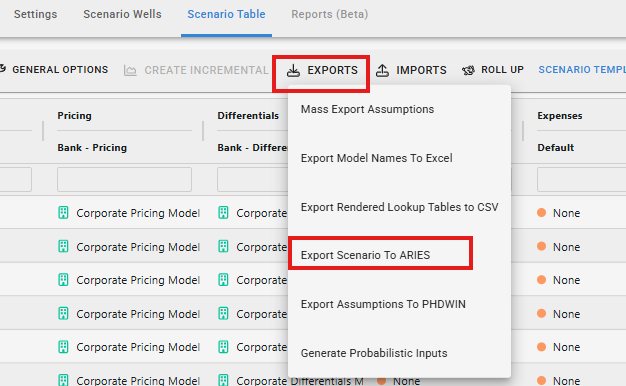
This will bring up the Export to ARIES menu.
The options here are as follows:
- Include Production Data
- The default is to export no production
- Daily or Monthly Option. Note that this will export all records for each selected well in the scenario.
- Export File Format
- The default is to export to a complete MS Access ARIES database (*.accdb).
- Important: After exporting to MS Access, it is recommended that you open the database in MS Access and execute Compact and Repair Database under the Database Tools menu.
- CSV and TXT option will export a zip file to your Downloads folder with the name "[Scenario Name] Aries Export.zip" which includes individual files for import into an existing ARIES database as follows:
- Note that the zip file includes:
- an instruction file,
- Master and Production data (if Daily or Monthly was selected above): (AC_PROPERTY.csv, AC_DAILY.csv, and AC_PRODUCT.csv
- Import templates for use with the ARIES Flatfile Importer (these should be opened and edited before use),
- Input Settings Records for copying and pasting into the AC_SETUP and AC_SETUPDATA ARIES system tables if desired
- Economic lines in two formats
- AC_ECONOMIC.csv is designed to be pasted into a standard AC_ECONOMIC table, or
- AC_ECONOMIC.txt uses the ARIES economics import format for use with the economics importer in ARIES. In the ARIES Project Explorer, click FILE ==> IMPORT ==> Economic Data, Then Browse to the .txt file and select "PROPNUM" as the Master Table Item. Use "Merge" if the wells already exist with those PROPNUMS or "Create" if new wells should be created to house the forecasts.
- CC_FORECAST table: If your MS Access database does not already contain the CC_FORECAST table, to add it we recommend exporting one or more wells to a new MS Access (*.accdb) database. That resulting MS Access database will contain the CC_FORECAST table and you can copy it into your working database. Be sure also to copy the references to the CC_FORECAST (alias CC) table from ARSYSTBL and ARSYSCOL in order to make ARIES recognize it.
- Well Identifier
- INPT ID: The ComboCurve unique identifier is called INPTID and normally starts with INPT followed by a random string of letters and numbers. This identifier will export the INPTID without the leading "INPT".
- API 10/12/14: 10-, 12-, or 14digit API number as needed
- Chosen ID: This identifier chosen when the project was created. This could be one of the other IDs mentioned here as well as the SPGCI PRODID, Enverus ID, etc.
- ARIES ID: ARIES PROPNUM. This will be populated if the project was originally imported from ARIES.
- PHDWIN ID: PHDWIN unique identifier. This will be populated if the project was originally imported from PHDWIN.
- Well Name
- Well Name + Well Number
- Note that any selection above may produce an error on export if ComboCurve detects that it will create a non-unique identification would be used to produce an ARIES PROPNUM.
- Forecast Unit
- Export forecasts as bbls/day & MCF/day or bbl/month & MCF/month, etc.
- Forecast Segment Ending Condition
- The end point of a forecast can be expressed in several ways - choose whichever is most useful.
- Forecast Non Major Segment To Life
- Forces the non-major phases to be expressed with a TO LIFE in ARIES, which sets the end point to the end of the major phase forecast. This can change the slope of the non-major forecast.
- Data Resolution
- Should the CUMS line at the top of the ARIES Production Section be calculated from Daily or Monthly production data or Same as Forecast (daily forecasts use Daily production, monthly forecasts use Monthly)?
- Include Zero Forecast
- Pulls the Shut-In periods into the forecast upon export
- Force Forecast/History Match
- Since ComboCurve is daily resolution and ARIES is monthly, export requires a slight recalculation of the curve parameters to make a good overlay of historical data (taken forward to the end of the month) and forecasts (taken backward to the first of the month). This alignment will make it so curve parameters between the platform are not verbatim. To facilitate full alignment, please select in ARIES Multigraph ==> Setup ==> Preferences Graph and Plot Preferences ==> Draw monthly history volumes at mid-month .
- Export Models as Sidefiles
- Groups model data and saves them as sidefiles in ARIES. This takes models and creates sidefiles which are applied to ARIES wells in lieu of individual lines.
- The options here are None or Prices & Diffs
- Export Forecast Also as Volumes
- Because the ARIES classic economics engine is monthly resolution, this feature can help create a tighter match. This option exports up to 60 months of your ComboCurve forecast volumes, beginning from the start date of the forecast, to the CC_FORECAST table and places LOAD line references in the Overlays section in order to create a precise match between CC and ARIES during the early-time when forecasts are steeply inclining or declining and changing frequently. Note that this will still export your normal forecast Arps parameters to the Production section; they will just be overlaid with forecast volumes from ComboCurve using the LOAD lines in Overlays.

Note: See below for more information on Force Forecast/History Match and Export Forecast Also as Volumes Setting.
SME Recommended Export Settings
Force Forecast/History Match
Force Forecast/History Match allows the exporter to "back-forecast" the curve to find what the curve's rate would be at the beginning of the month and exports that as the start rate in ARIES.
- This eliminates the gap between historical data and the forecast by compromising and allowing initial production rate (Qbeg in ARIES Multigraph) to change
- This feature is best used, and is only recommended, when the fit of the curve vs historical data is more important than having the precise initial production rate (Qbeg in Multigraph) honored:
- Such as when the ARIES Effective Date is later than the START date of the forecast.
- ComboCurve will only perform this transform on forecasts with start dates prior to the As Of Date (Effective Date in ARIES). Because this transform does a back-calculation of Qi, particularly in the case of steep Arps (hyperbolic) forecasts, even a small backwards extrapolation from the Qi/Qbeg to the beginning of a month can result in significantly higher start rates.

It is not recommended to move your Effective Date backwards in ARIES after exporting with Force Forecast/History Match because it may cause incorrect rates to be used in your economic analysis.
Export Forecast Also As Volumes
Because ARIES forecasts are required to start at the beginning of a month (BOM) and segment durations are required to be integer multiples of a month, it is often impossible to write Arps parameters to ARIES that precisely match ComboCurves daily-resolution forecasts.
- ComboCurve forecasts can start on any day in a month, segments can last for fractional multiples of a month, and can switch forecast methods within a month (e.g., incline, flat, decline).
- ComboCurve now has a method to force ARIES volumes to match ComboCurve during the rapidly-changing early time: Export Forecast Also as Volumes
This option will allow the user to write ComboCurve forecast monthly volumes to a new custom table in ARIES called CC_FORECAST.
- Write up to 60 months of volumes. It is limited to 60 months because of a limitation on the number of LOAD lines ARIES can create.
- All the usually Arps Parameters are still written to the Production section (Section 4) in ARIES, but in addition,
- LOAD lines are written to the Overlays section in ARIES to replace the Arps-calculated volumes with the volumes calculated by ComboCurve for the given month.
- This creates a precise match during the early time and reverts to Arps parameters later when segment changes are less abrupt.
Related Articles
ComboCurve: Import ARIES Database
Import ARIES Database For a video tutorial on import/exporting and QC tieouts of econ see the following article - ComboCurve: ARIES Conversions Also to see items unsupported see the following article - ComboCurve: ARIES Import/Export Conversions – ...ComboCurve: ARIES Import/Export Conversions – Currently Unsupported Items
The current version of the front-end ARIES import interface handles the majority of ARIES database imports and exports. Some of the more complex and less commonly used syntax, especially certain overlay definitions, might not be currently handled, ...ComboCurve: ARIES - Importing and Exporting Forecasts via .txt in the Forecast Module
Importing and Exporting Forecasts to ComboCurve from ARIES Importing Forecast to ComboCurve From ARIES Here's a video showing the workflow: https://www.loom.com/share/ff233c5af4c34e7fa33db9711dd5a8e5 ComboCurve has a method to ingest forecasts (only, ...ComboCurve: Scenario Tooltip Overview Article
Scenario Tooltip Overview Article Scenario Page (Overview of Main Screen) Top Left Hamburger Icon - to navigate to all CC sections Green Scenario Name - Quick navigation to the project landing page Top Right Guy Icon - Change name, password or log ...ComboCurve: PHDWin Scenario Import
PHDWin Scenario Import Note: For a video tutorial on importing/exporting and QC tieouts of econ, see the following article - ComboCurve: PHDWin Conversions PHD to PHZ To import a PHDWin project into CC the file must be a PHZ file. A PHZ is the PHDWin ...