ComboCurve: Scenario Templates
Scenario Templates
Overview
Scenario templates let you save a reusable set of qualifiers and econ model assignments so you can build new scenarios or update existing ones in a single click, instead of recreating qualifiers and model assignments by hand each time. This article covers where to find scenario templates, how to create and manage them, and the two ways you can use a template once it exists: applying it during scenario creation, and appending it to an existing scenario.
Application For Scenario Creation
Users can choose to apply a template when creating a scenario. The result is the scenario is created with the models applied/imported and the qualifiers created
Application To Existing Scenarios (Append Functionality)
This can be done in the scenario table and APPENDS the qualifiers to the existing ones. Primary use case here is for banks applying their economic assumptions to their clients scenarios
Managing
Scenario Template Editing Page
You can access scenario template management from two locations in ComboCurve. Note you cannot manage/edit the templates once in a scenario, only apply.
- Scenario module list page
- Company level, under Econ Models → Scenario Templates
Scenario templates behave similarly to econ model configurations: there is no scoping restriction on a template itself, so a single template can mix and match models from different scopes (company-level and project-level) and still be applied to a scenario.
In the template menu, you can filter the list to show templates created by other users, your own templates, and admin endorsed templates. You can also mark templates as favorites (blue star). Favorited templates appear in their own section at the top of the list, above your other templates.
Access Limitations
Because templates can reference both company- and project-level models, it's possible for a template to include a model from a project you don't have access to. In that case, the template still appears in your list, but it will be disabled and cannot be selected, since ComboCurve recognizes you don't have access to one of its models.
Creating and Editing
Creating a template is straightforward: each line you add represents one assumption (for example, General Options, Reserve Category, Ownership and Reversion, Dates, etc.).
- Click + Assumption to add a line for each Assumption you want in the template and click the name to change the Assumption.
- In that line you can give the Qualifier a name or leave as Default.
- Choose Model Type - Company or Project. If selected Project then select the project you would like to pull from. Note: you will only see projects you have access to.
- Next, choose the Model Name or Scenario Lookup Table you want to assign.
- To add an additional qualifier to an existing assumption (for example, a second CAPEX qualifier), click the check mark and then Add Qualifier. You can repeat this for as many qualifiers as you need, up to the standard scenario limit of 20 qualifiers.
- After adding all wanted assumptions and qualifiers, give the template a name. Optionally mark it as Admin Endorsed, which makes it visible to other users as an admin-approved template.
- Click Save As to save your changes as a new template or Save to overwrite the original.
From the top of the template editor, you can also rename a template, endorse or unendorse it, and save or save-as at any time.
Example of more than one qualifier:
Permissions
For Admin Endorsed templates admins and econ model admins can create them.
Apply Template
Version 1 of scenario templates supports two use cases: applying a template while creating a new scenario, and appending a template's qualifiers to a scenario that already exists.
Assign to a New Scenario Upon Creation
When you create a new scenario, after adding your wells you'll see a list of the templates you have access to. By selecting Preview you can see the template before applying it as well as look at all your existing templates.
After clicking Assign, ComboCurve shows a dialog covering two settings:
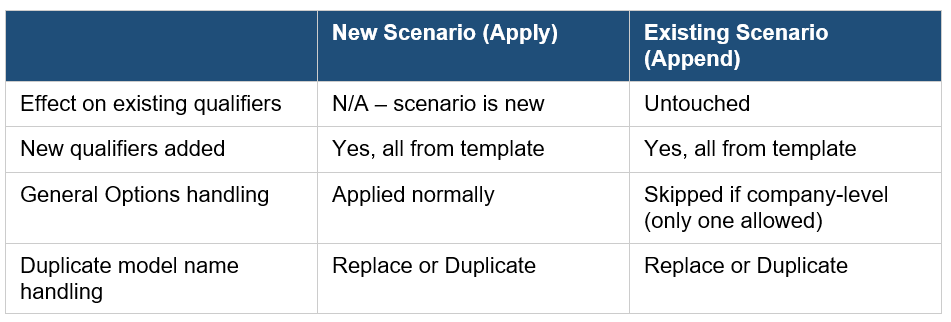
- Qualifier Behavior – relevant only when appending (not used during scenario creation)
- Append
- Econ Model Behavior – determines what happens if an econ model from the template has the same name as one that already exists, the same setting used when importing a scenario or models from another project.
- Replace
- Duplicate
Once confirmed, the scenario is created with all of the template's qualifiers and model assignments already in place, ready to run, provided your General Options and Ownership models are properly populated.
Best Practice: Consider building a company-level Ownership and Reversion model that references data snaps, then including that model in your templates. This way you never have to manually update it project by project.
Assign to Existing Scenario
For existing scenarios, V1 supports one method: Append. Appending adds new qualifiers from the template without modifying any of the scenario's existing qualifiers or model assignments.
- If a template assumption is a project-level model, appending brings that model into the qualifier as expected.
- If a template assumption is a company-level General Options model, appending does nothing for that line, since a scenario can only have one General Options qualifier.
To Append:
- In a Scenario, select the blue Scenario Templates next to the Run Scenario button. Here the list of templates will be on the left and you can filter to find the one you want. If you click on the template name the layout will display on the right.
- Select the template and click Assign.
- In the resulting dialog box, choose Append (Econ Model Behavior still applies if there are naming conflicts).
- Click Assign to confirm. New qualifiers from the template — each with its assigned models — are added alongside your scenario's existing qualifiers.
Create Vs. Append
Known Limitations
Adding New Wells
Currently, templates do not have a defined behavior for wells added to a scenario after a template has already been applied. Support for this is planned for a future version.
This is a more complex problem because it requires isolating the new well, avoiding changes to model assignments on existing qualifiers, and correctly matching qualifier names so the right models are applied to the right wells.
Excluded Economic Assumptions
The following are Assumptions that are excluded from scenario template because they are project specific:
- Forecast
- P-Series
- Schedule
Related Articles
ComboCurve: Scenario Module Overview
Scenario Module Overview This document covers the overview and layout of the main screen. Layout Top Left Hamburger Icon - to navigate to all CC sections Green Project/Scenario Name - Quick navigation to the project landing page Top Right Guy Icon - ...ComboCurve: Scenario Tooltip Overview Article
Scenario Tooltip Overview Article Scenario Page (Overview of Main Screen) Top Left Hamburger Icon - to navigate to all CC sections Green Scenario Name - Quick navigation to the project landing page Top Right Guy Icon - Change name, password or log ...ComboCurve: Unique Models
Unique Models Overview ComboCurve supports two types of economic models: Project Level Models and Unique Models. Understanding the difference between these two types is key to managing your assumptions effectively across scenarios and projects. ...ComboCurve: Mass Export/Import Assumptions
ComboCurve: Mass Export/Import Assumptions In this article we will discuss mass importing and exporting from the scenario main page. Model management, analysis and preservation is done through the EXPORTS and IMPORTS buttons at the top of the ...ComboCurve: Carbon Network Overview
Modeling Basics Carbon networks are composed of nodes and edges. Each node represents a point where a calculation occurs in the network, while edges indicate which nodes are related and what time series data is passed from node to node. Some nodes ...