ComboCurve: Group Permissions
Overview
Group Permissions allows administrators to create groups and assign user roles to those groups to quickly and effectively manage user access to projects. The purpose is to allow companies to better manage users in their environment. For a specific project being worked on, additional roles may be granted and then taken away once the group accomplishes its task.
Note: The user must be an administrator to create groups. In a new, brand-new environment, no administrators may exist yet; contact ComboCurve Support to grant a user administrator roles.
Roles
A role is simply what a user has permission to do in ComboCurve. Detailed descriptions of each role in ComboCurve can be found in the Roles tab and the Knowledge Base. In the Roles tab, you can click the drop-down for each role and filter to users assigned that role.
Individual Roles vs. Group Roles
A user can be assigned an individual role when initially added to an environment, which can be viewed in the users tab. However, this same user can be given additional temporary roles via being a part of a create group.
Example: This user's normal role is simply that of a user, which is shown in the users tab below
By creating a group, additional roles can be added for the time this group exists. Here, adding the role of Econ Model Administrator.
Creating Groups
Navigate to Company page and Access & Roles Tab
To create a new group, navigate to the Groups section and click Add Group. Then:
- Give the group a name
- Describe what this group's function is
- Add specific users to the group
- Assign roles to members of the new group
Finish creating the group by clicking apply, and now it will be added to the list of created groups.
Note: You can add one or more roles to a group of users from the drop-down list seen below:
Applying Groups to Projects
Start by navigating to a project, like the company version, and navigate to the access tab inside of the project
Here, you can add users to said project just like before. To add a company-defined group, go to the Groups tab, click Add Group, and select from the list of groups.
Finally, assign project-specific roles to the users included in that group.
Important: Company-level roles do influence projects. If a user is simply defined as a user at the company level, then at the project level is promoted to an administrator; the user will have administrator controls just in this project. However, if a user is defined as an administrator at the company level, then as a user at the project level. The company-level role takes precedent.
Quick View Groups
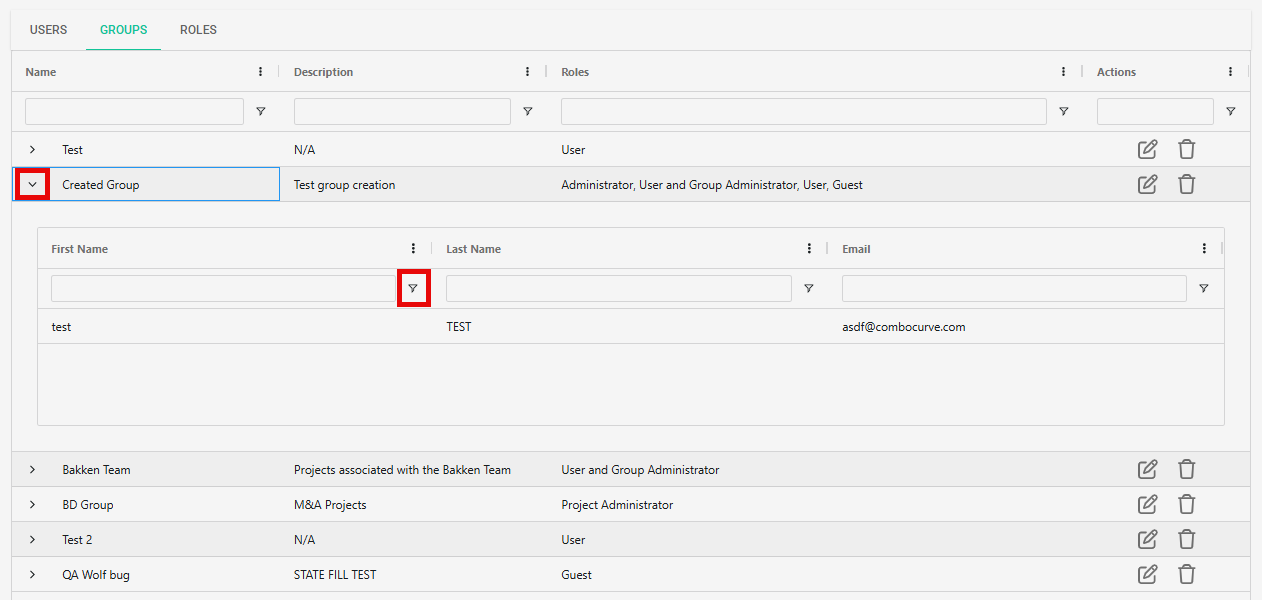
At the top of the group's list, filtering by group name, description, and action can be done.
Easily view a group's information, members, and roles by clicking the arrow dropdown. The same ability to filter as before exists when viewing specific groups' details.
Editing/Deleting Groups
To edit/delete a group, simply find the group to be changed and click the trash can to dispose of it or the editing icon to alter it.
Related Articles
ComboCurve: Project Structure Best Practices
Project Structure Best Practices Project structure varies by company type, size, and workflow. Please consult your dedicated Customer Success Engineer to discuss your specific use case. Background - Company Vs Project Level Data and Well Limits In ...ComboCurve: ARIES - Preparing and Transferring Access databases (.accdb or .mdb)
Preparing and Transferring ARIES Access databases (.accdb or .mdb) General Size Limits ComboCurve has full support for ARIES (MS Access databases) and PHDWin imports. Feel free to submit a ticket and a Customer Success Representative can help in the ...ComboCurve: Group Economics
In this video, we look at group economics. This feature allows for quick and easy allocation of Capex, Production Taxes, and Expenses based on various criteria.ComboCurve: Project Custom Headers and Project Custom Streams
Project Custom Headers Creating Project Custom Headers Outside of the company level, the user can create project level custom headers. The user can navigate to the project wells page of the project of interest and locate the "Custom Columns" tab. The ...ComboCurve: Company Custom Headers and Company Custom Streams
Company Custom Headers Company Custom headers can be created at the company level under the custom columns tab. Inside the custom columns tab you will see that two options, well headers and production steams. Clicking on well headers allows the user ...